Label printing with factoryprint
Labels that print when the step passes
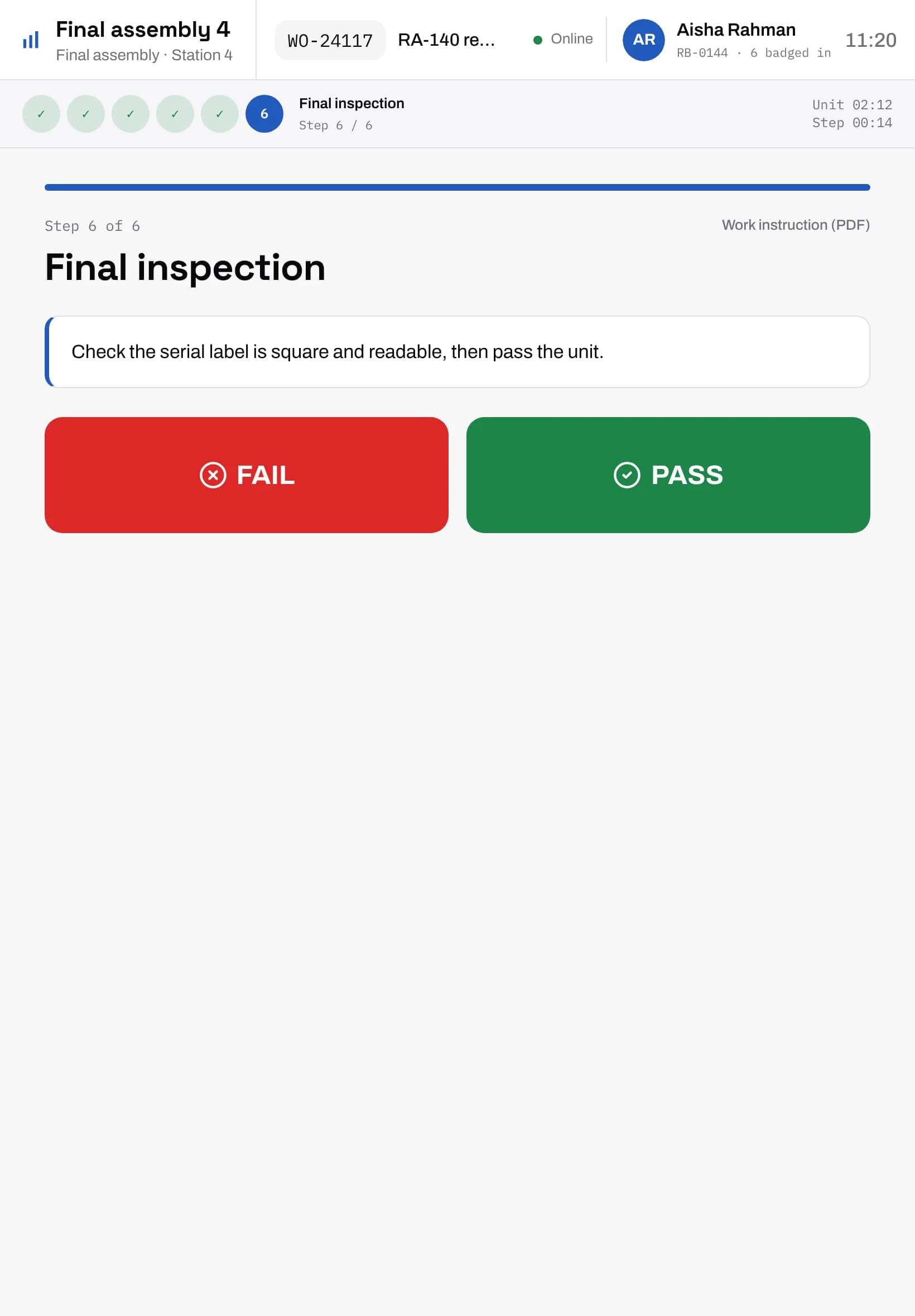
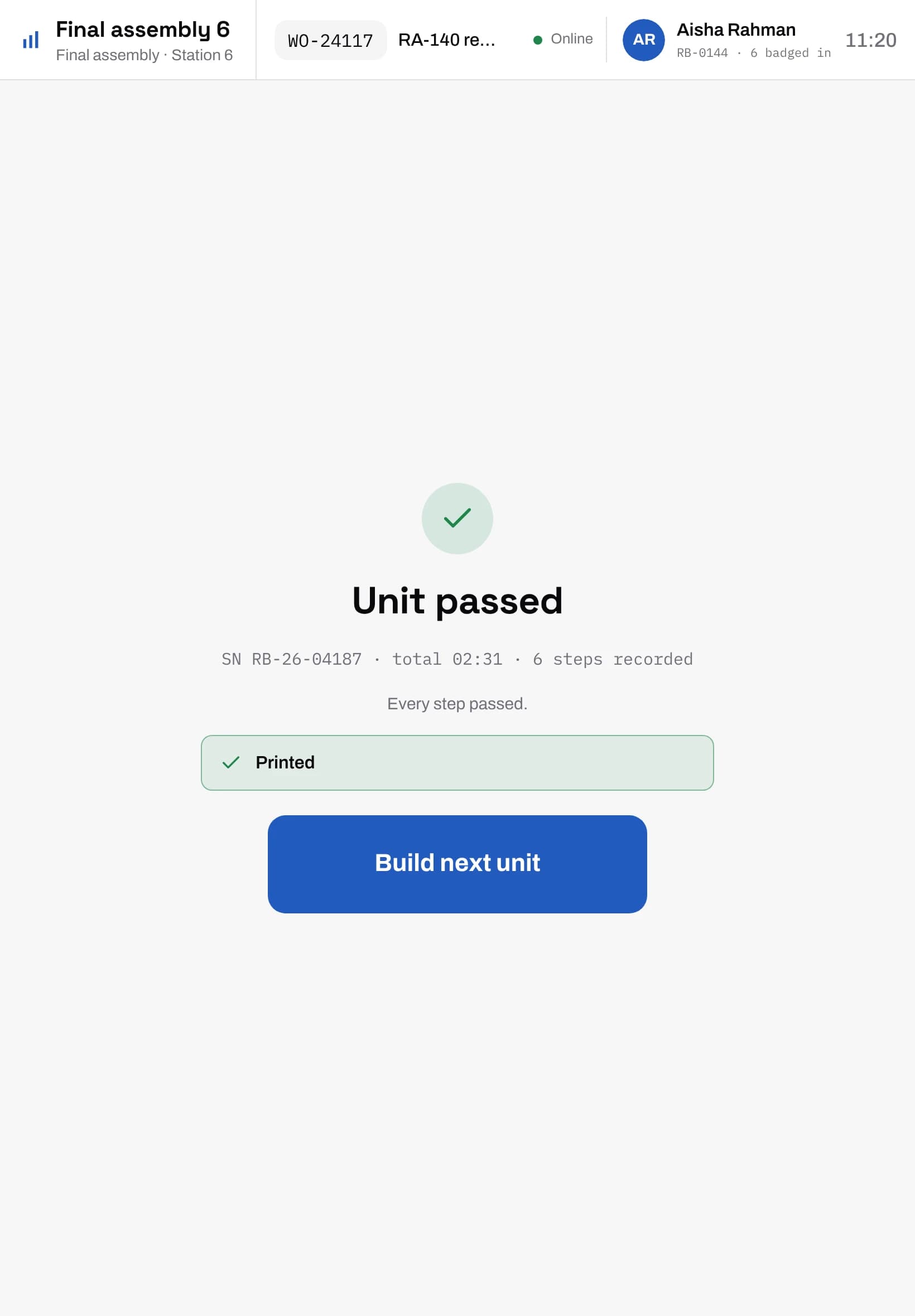
A step on the station tablet can print a serial label at final inspection or a carton label at pack-out the moment it passes. factoryapps draws the label at the size of the roll in the printer, and factoryprint, a small program on one PC at your location, sends it to the printer. Nobody on the floor opens a print dialog.
From the step to the printer
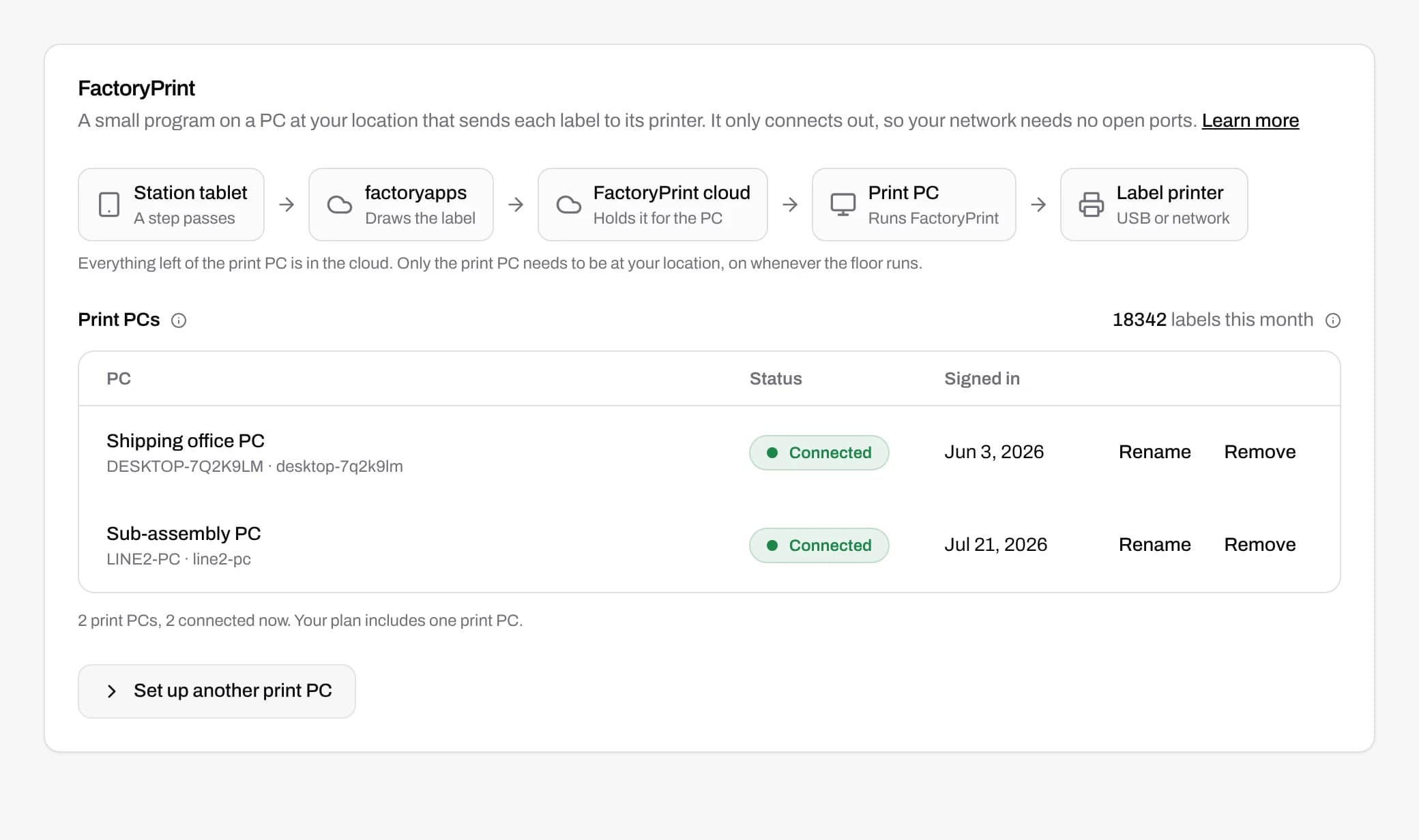
Everything up to the print PC runs in the cloud. The print PC is the only part at your location. It connects out over HTTPS, so your network needs no open ports and there is no server to look after.
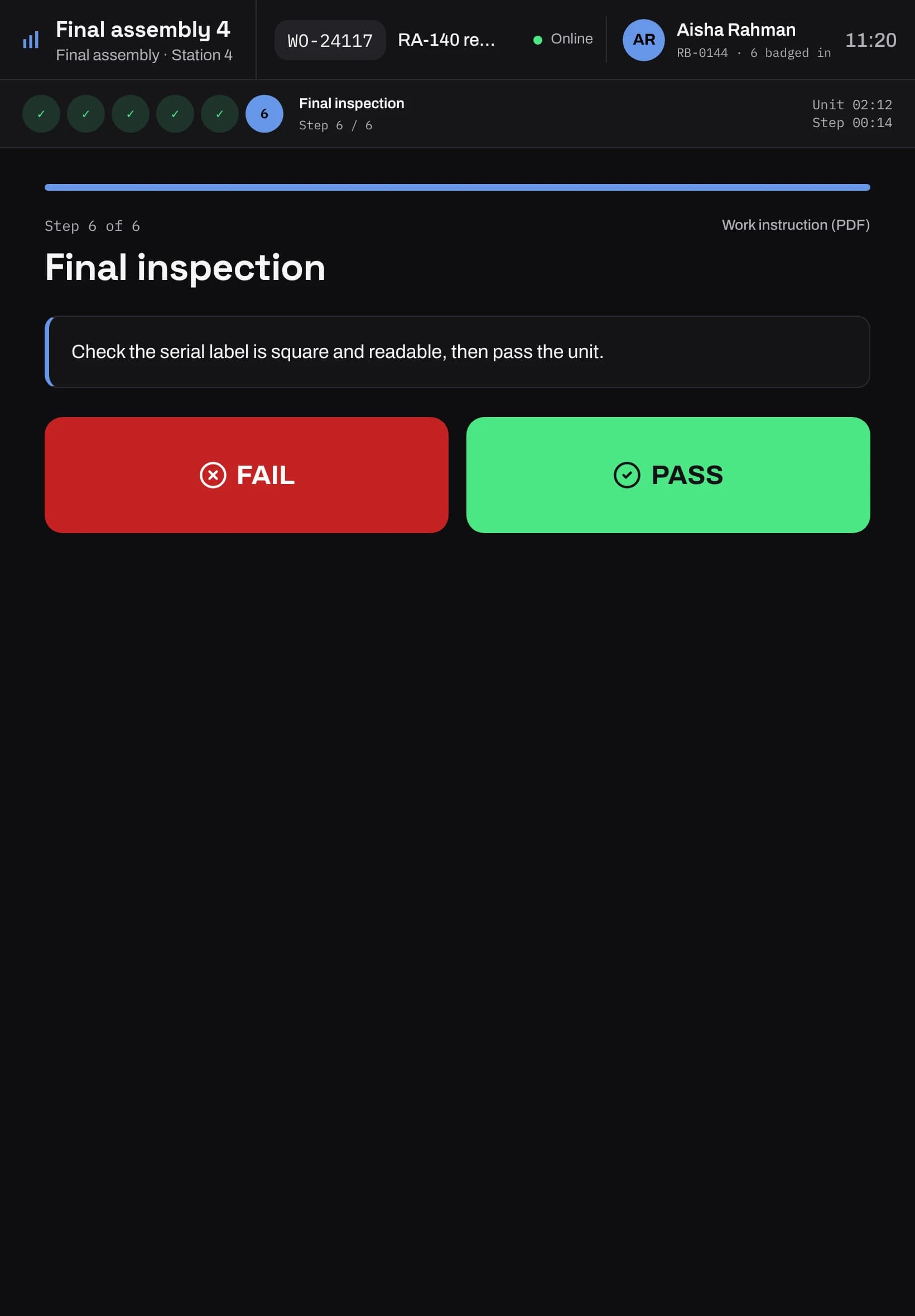
1. A step passes
The step's print settings say which template, how many copies and which printer.
2. The label is drawn
factoryapps fills in the serial, work order and item, and draws it at the printer's label size and resolution.
3. factoryprint picks it up
The print PC receives the label and hands it to the printer's queue.
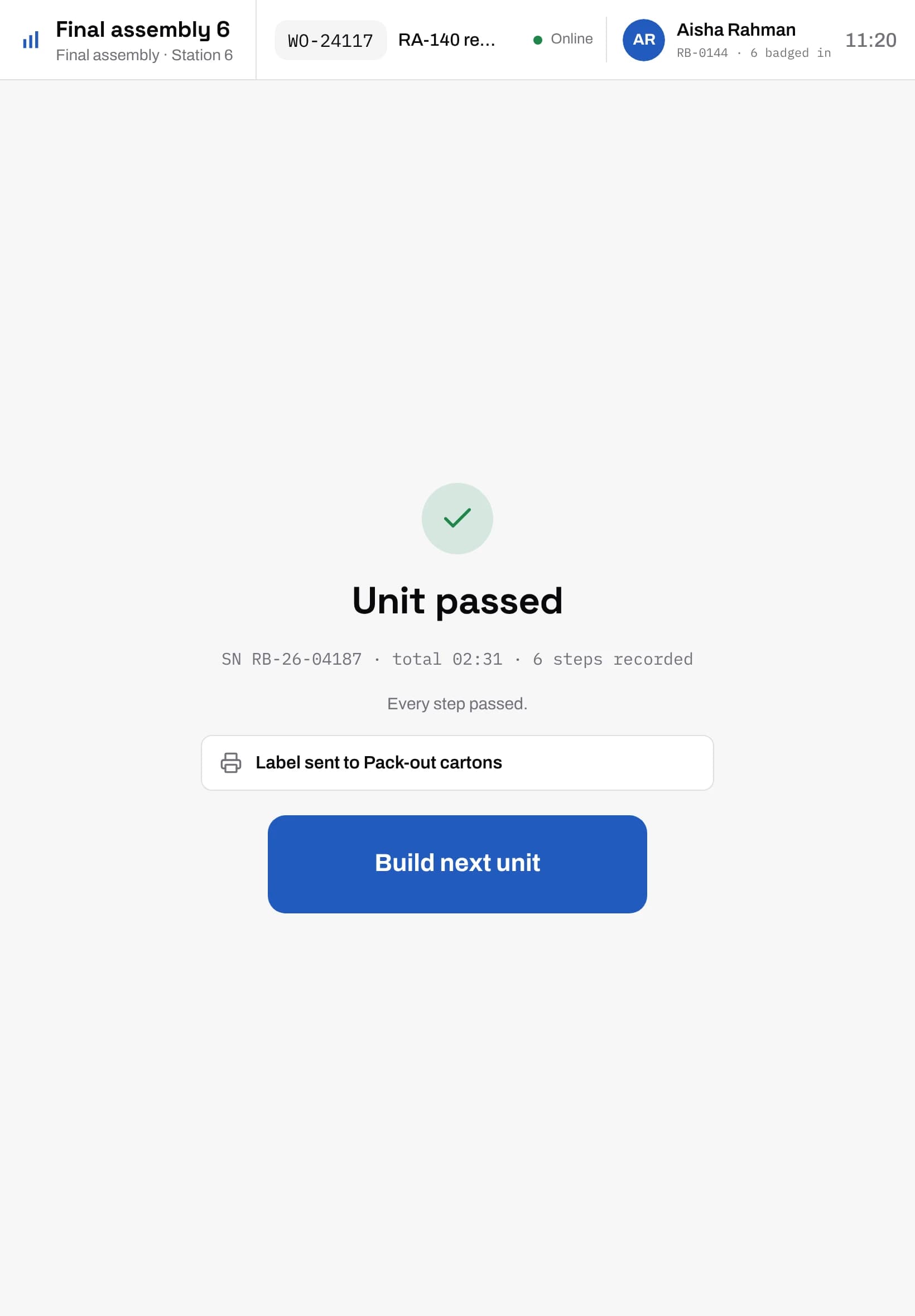
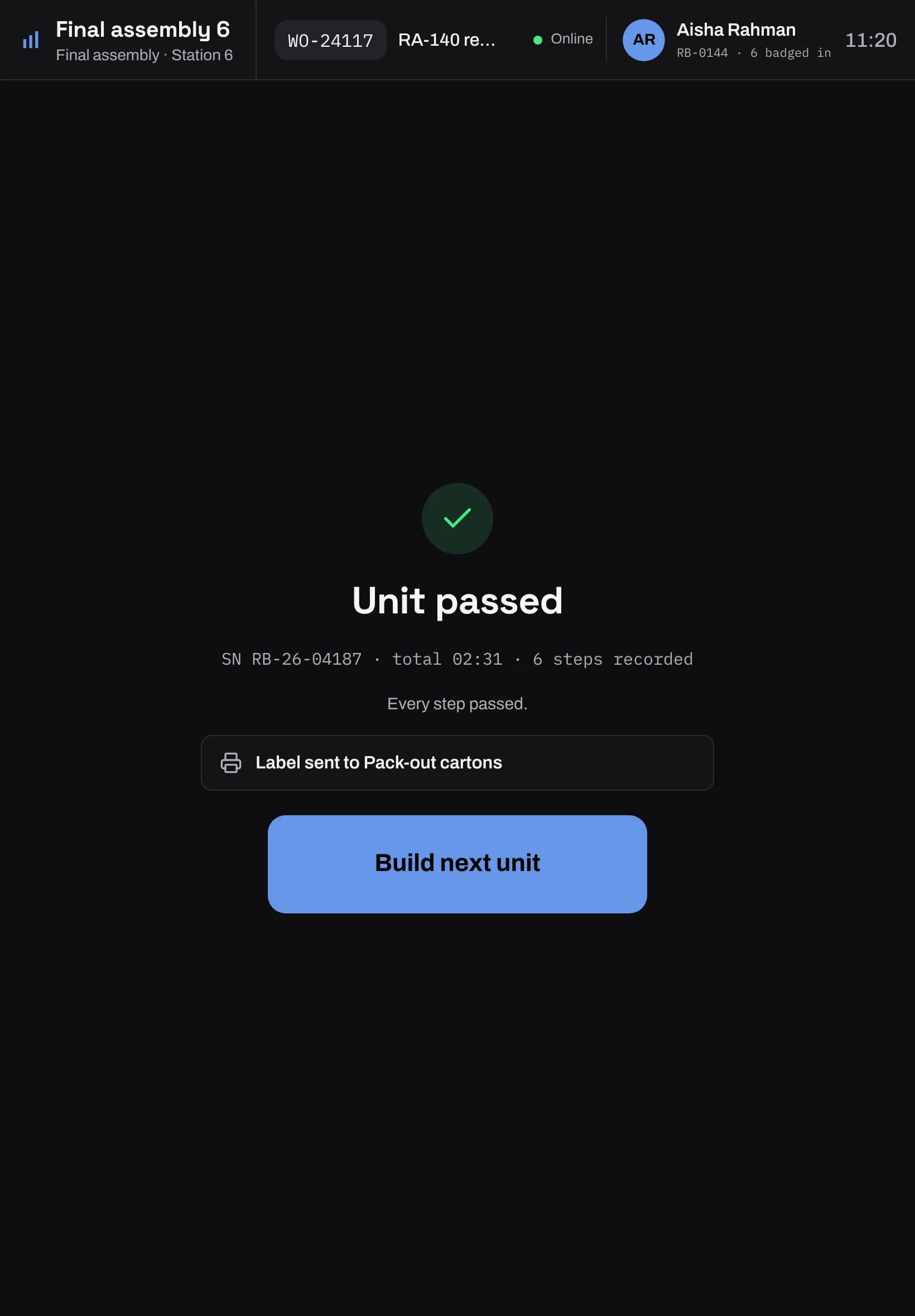
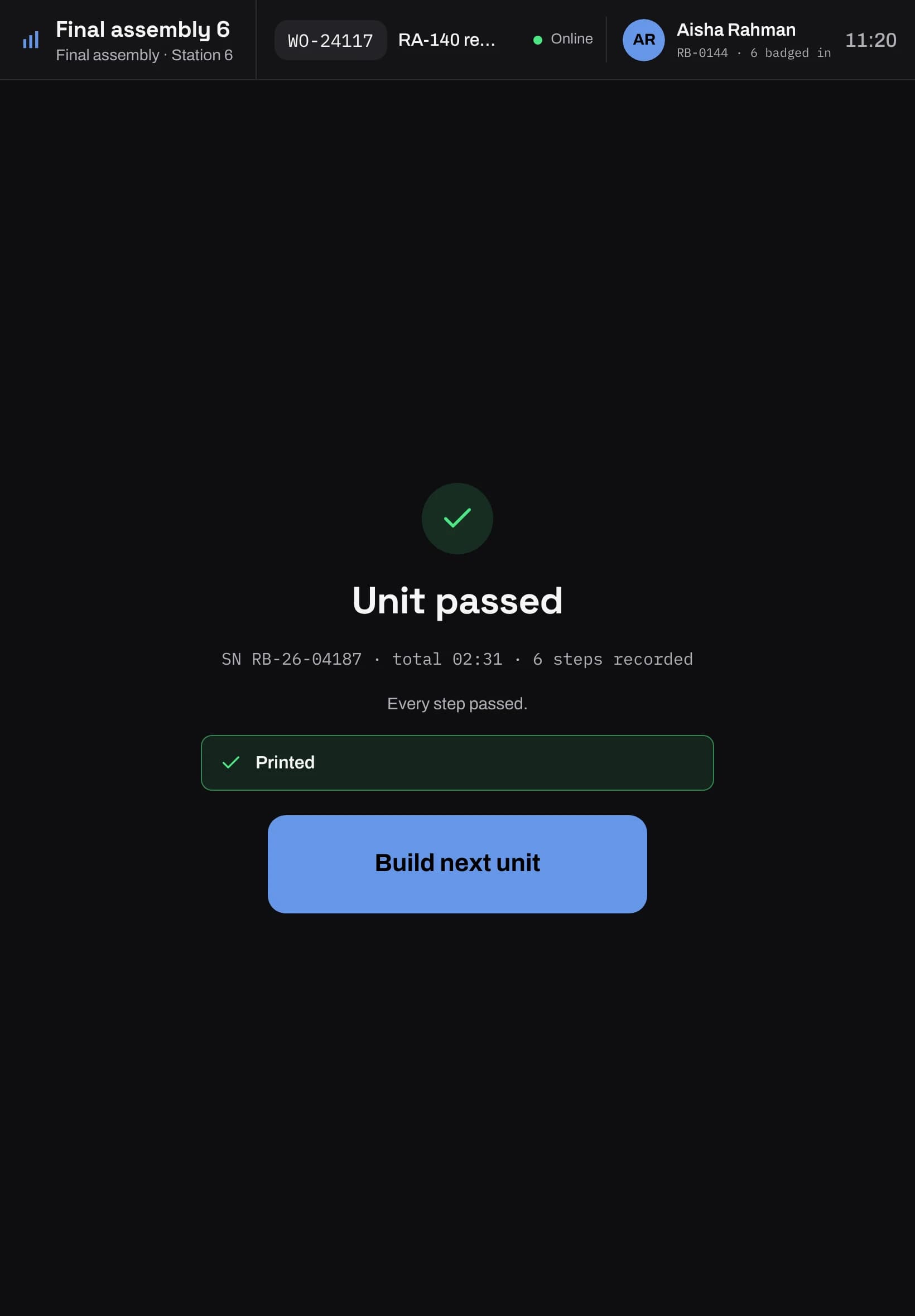
4. The tablet says Printed
The operator sees the label go from sent to printed under the next step.
The label printers you already own
Most thermal label printers work, including Zebra, Honeywell, SATO, TSC, Brother and DYMO, and sheet printers too. They can be plugged into the print PC by USB or sit on your network. If the printer prints a test page from that PC, factoryprint can use it.
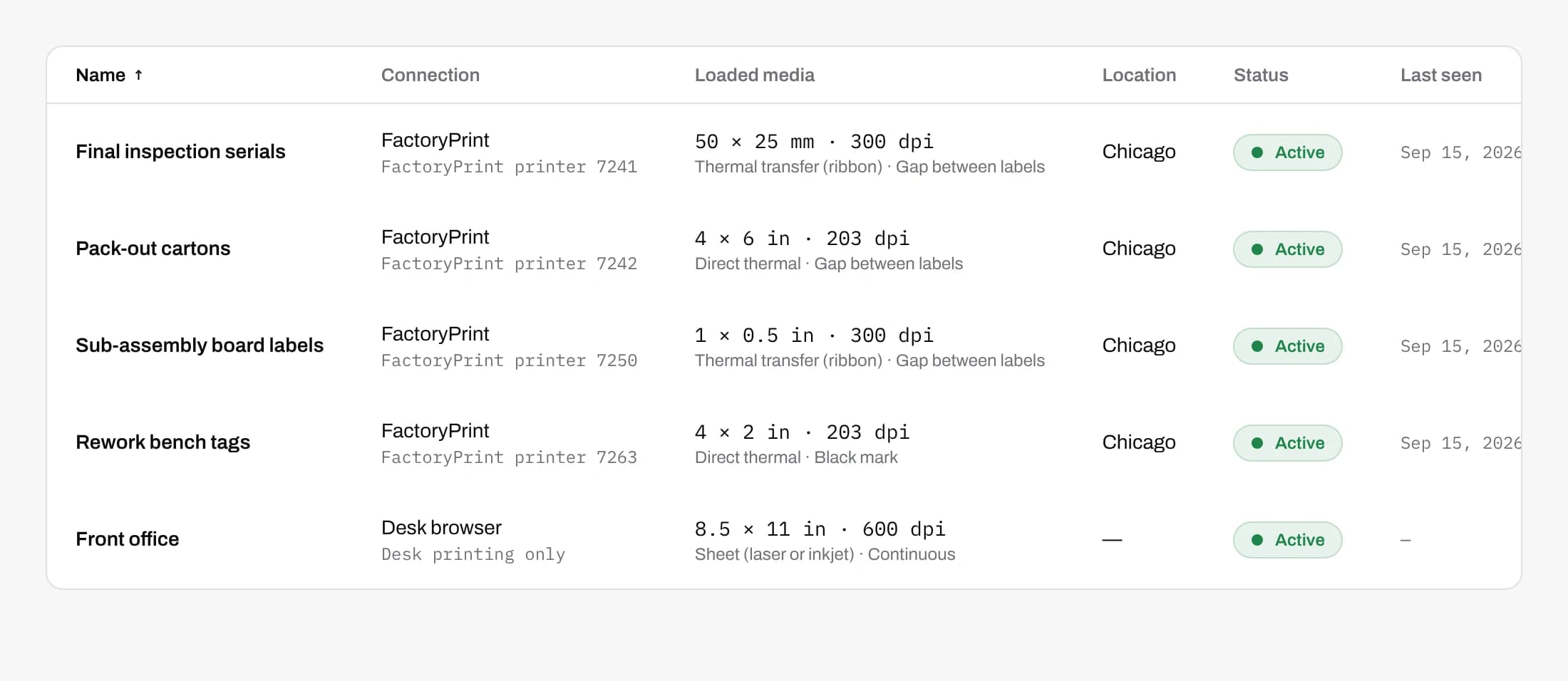
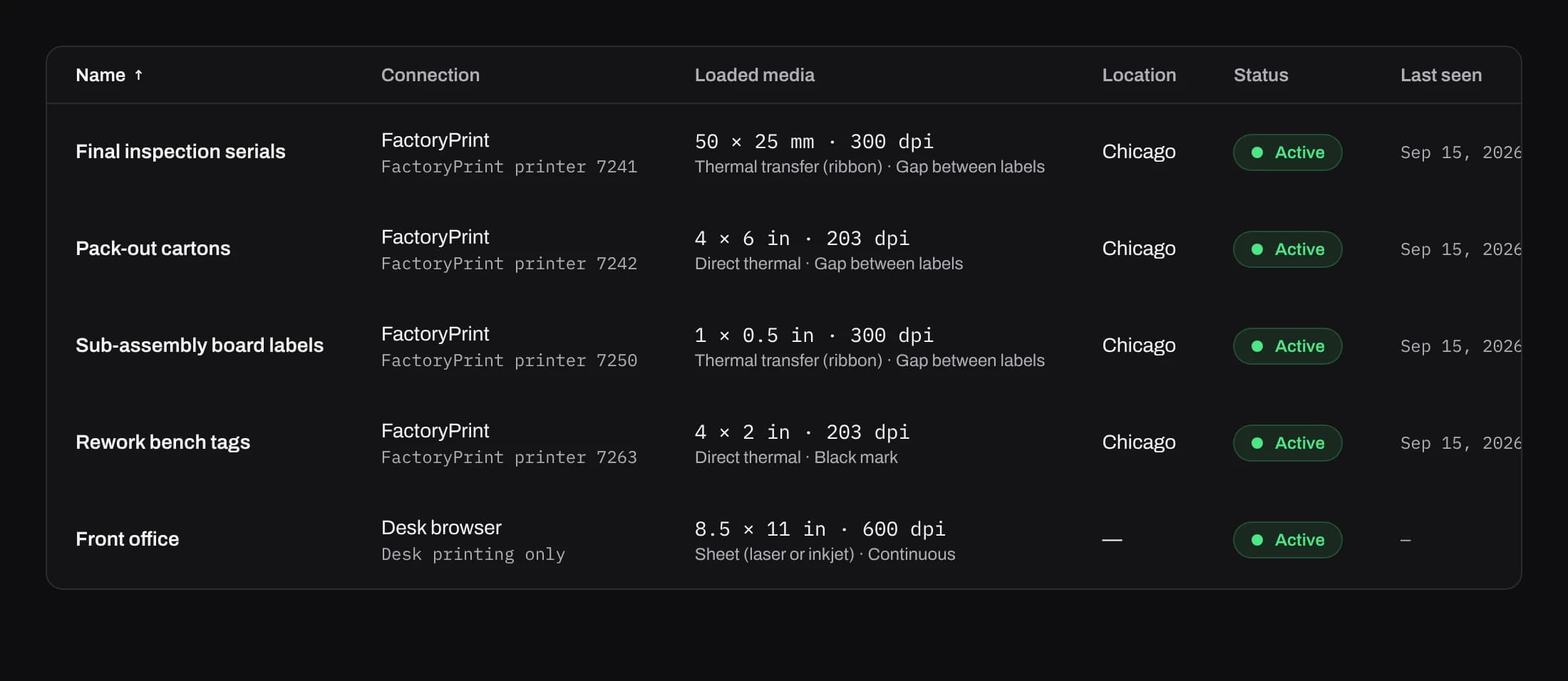
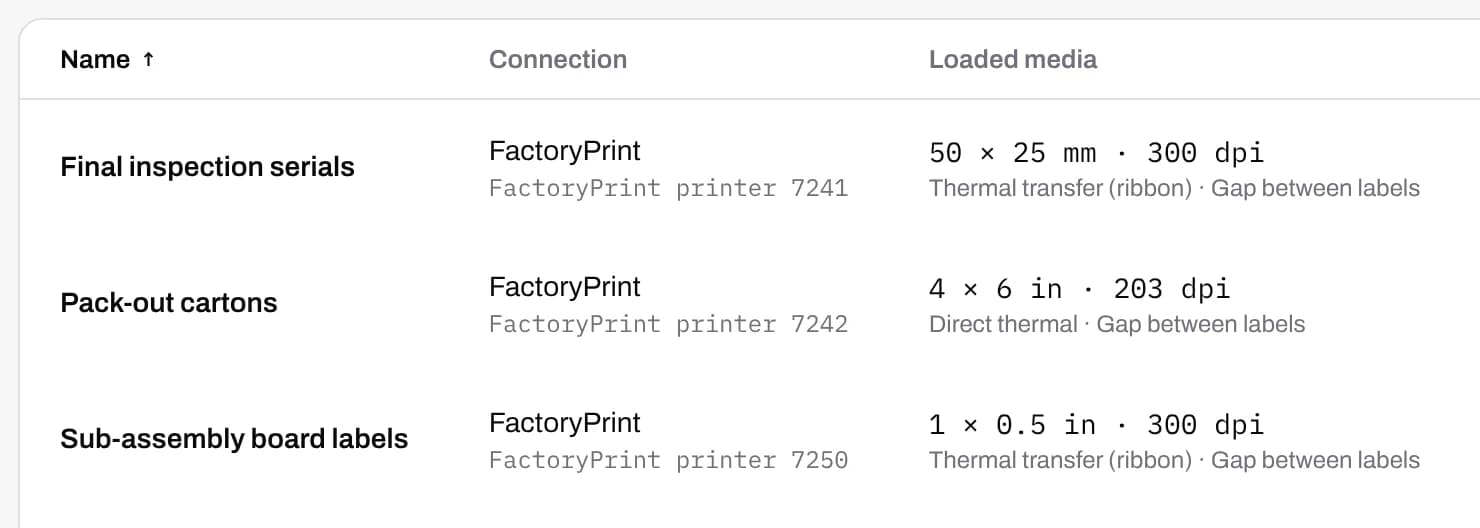
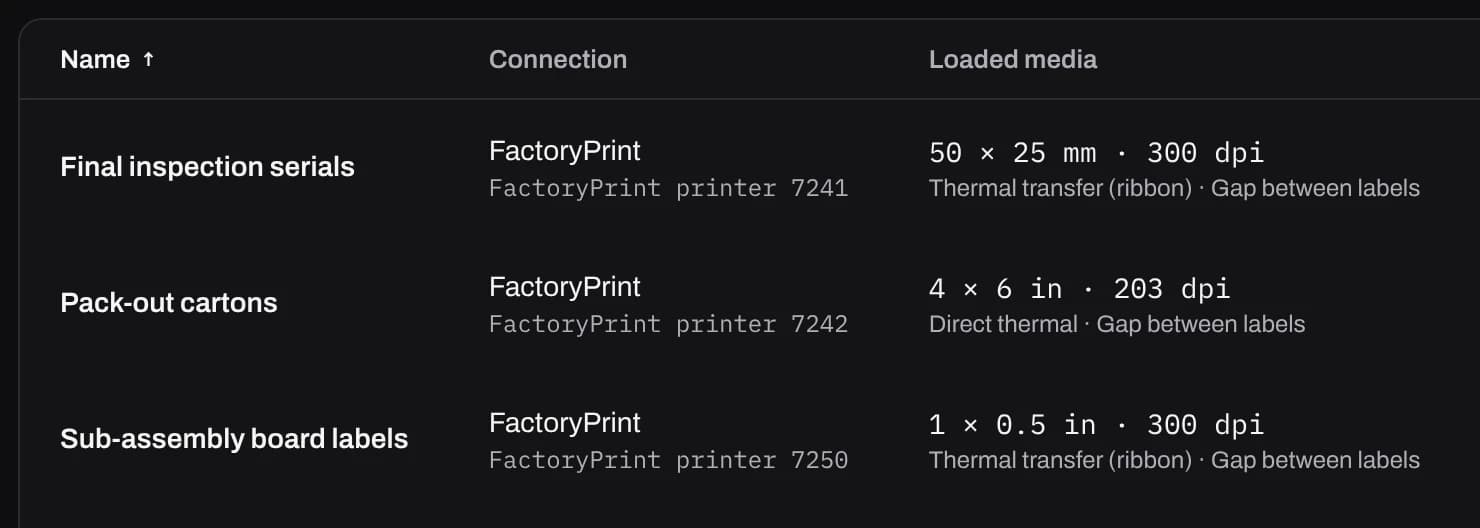
For each printer you record what is loaded: label size, resolution, direct thermal or thermal transfer, and how it finds the next label. Change it when a different roll goes in.
Templates that fit the roll
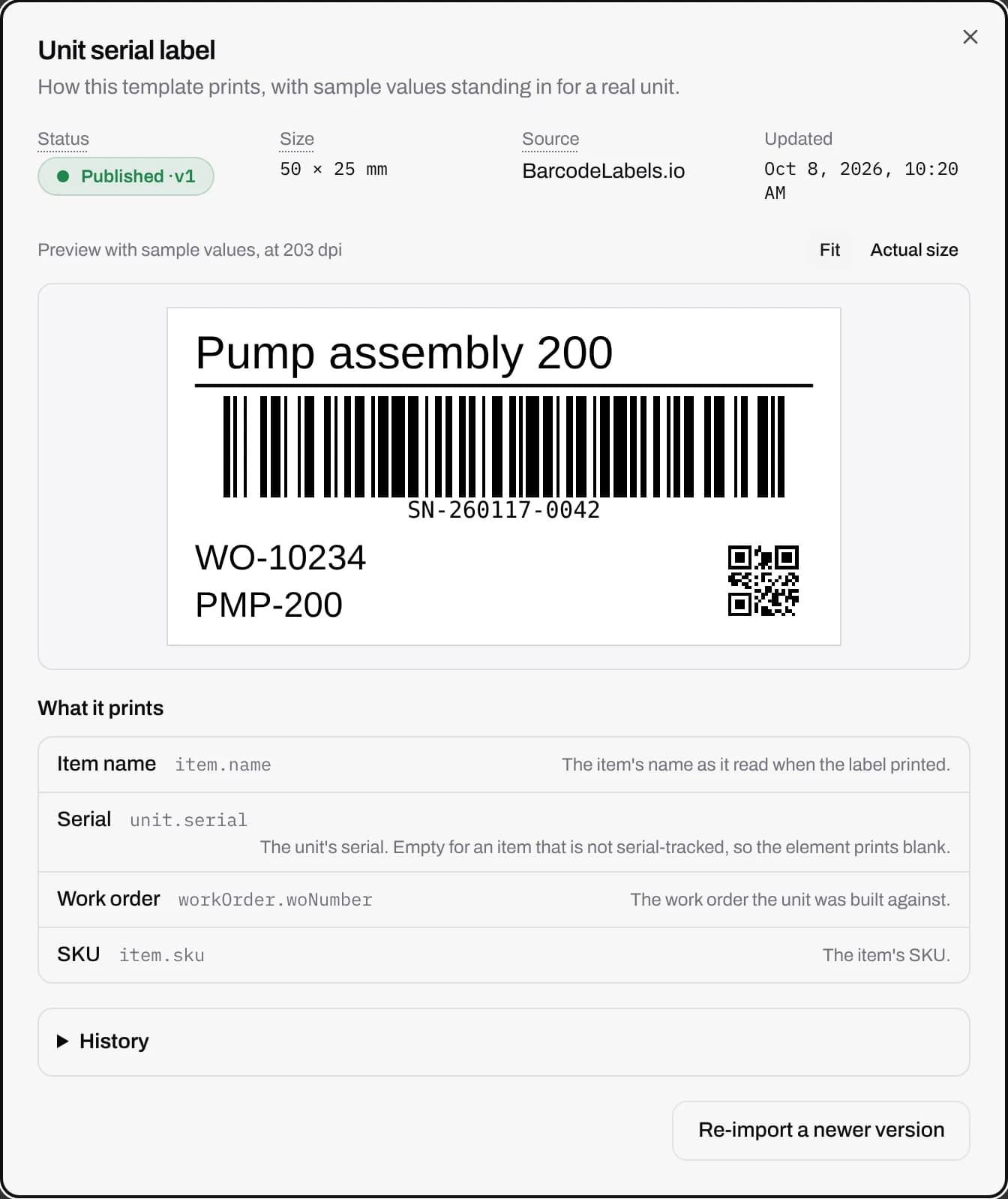
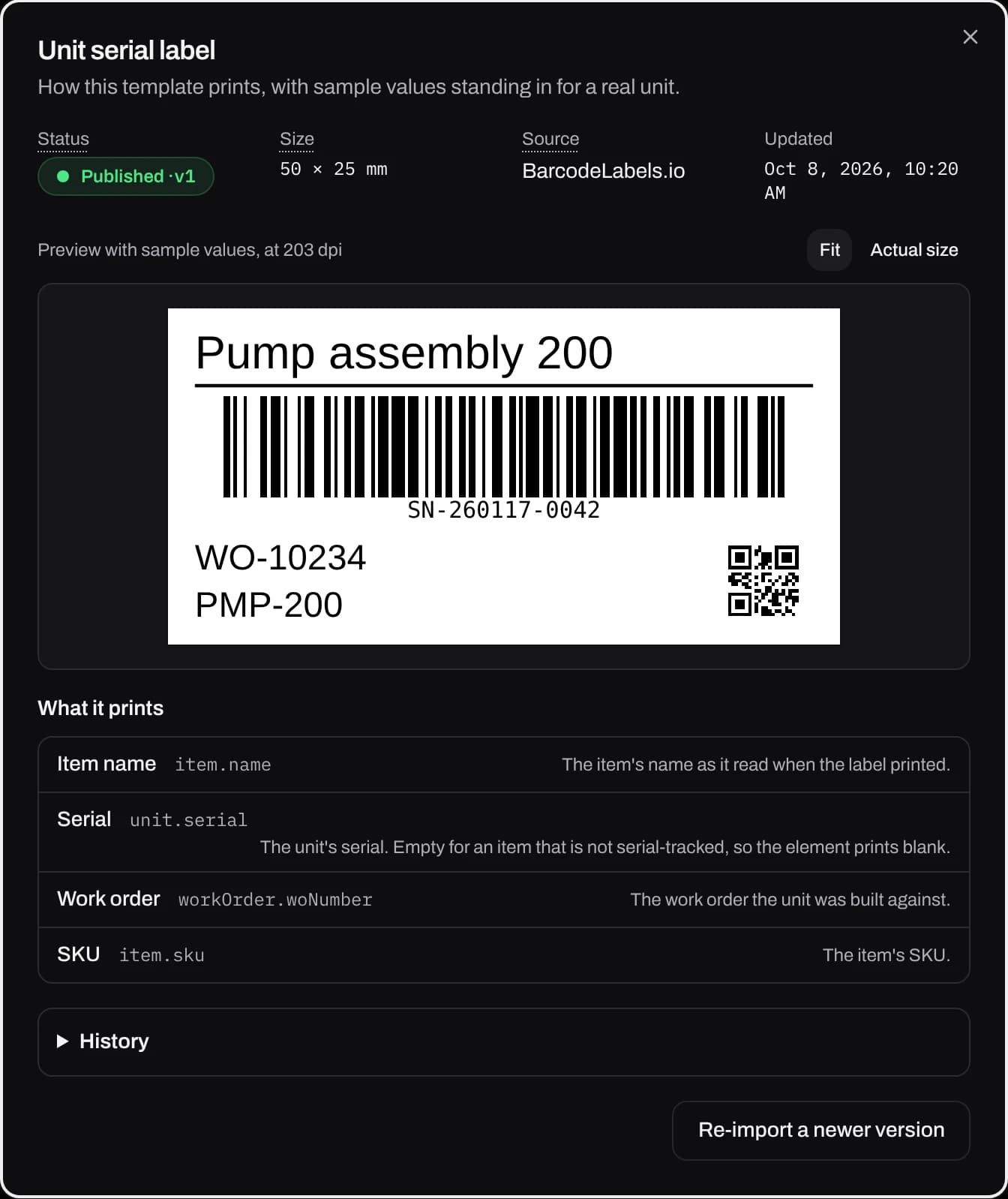
Design a label in BarcodeLabels.io, export it as JSON and import it. Map each field to what prints there, such as the unit serial, the work order or the SKU, and check the preview before you publish.
A template that is larger than the label in its printer stops the work instruction from publishing and names the step. Published templates never change, so a reprint matches the original.
Set on the step, with a default per station
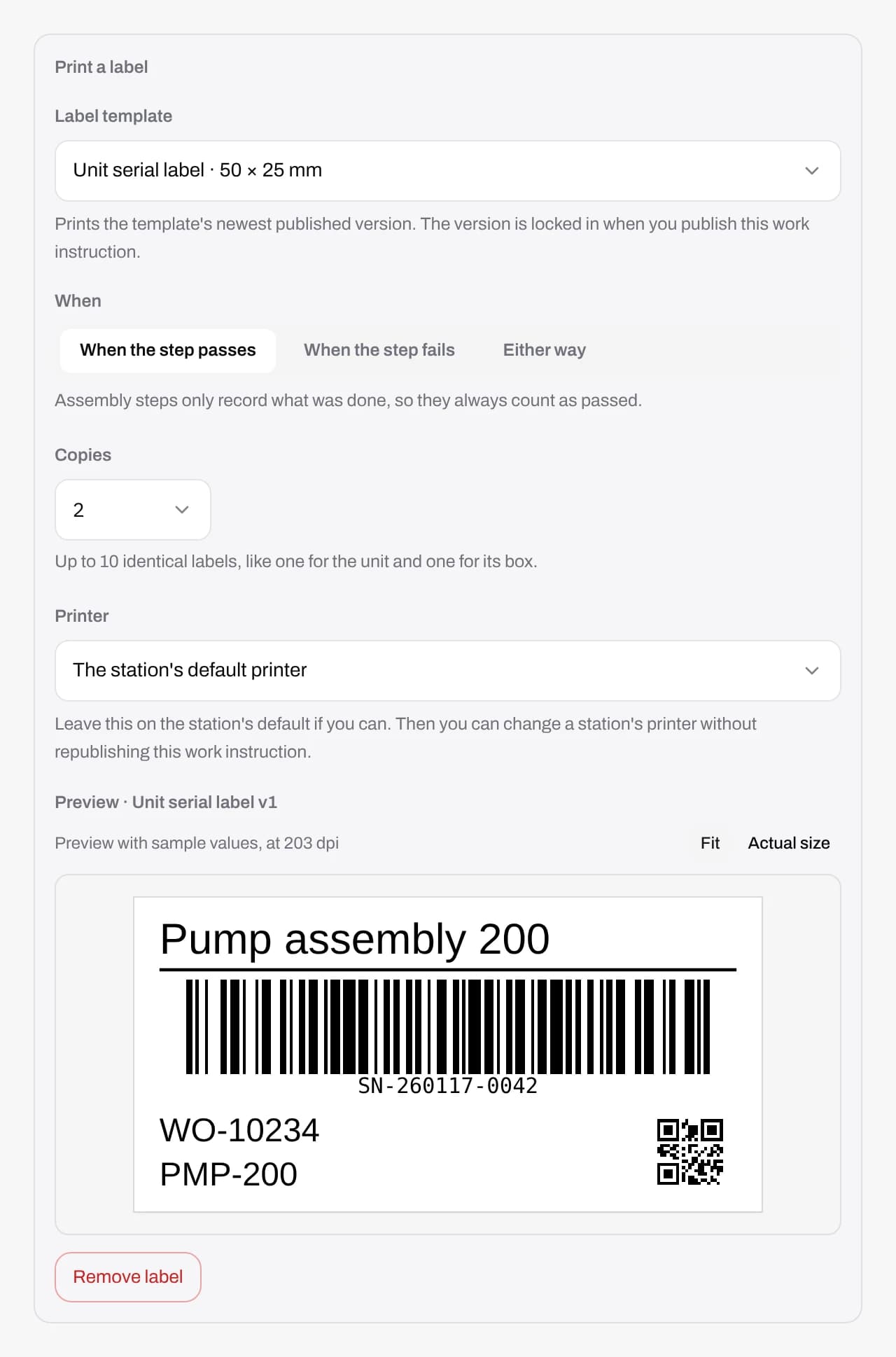
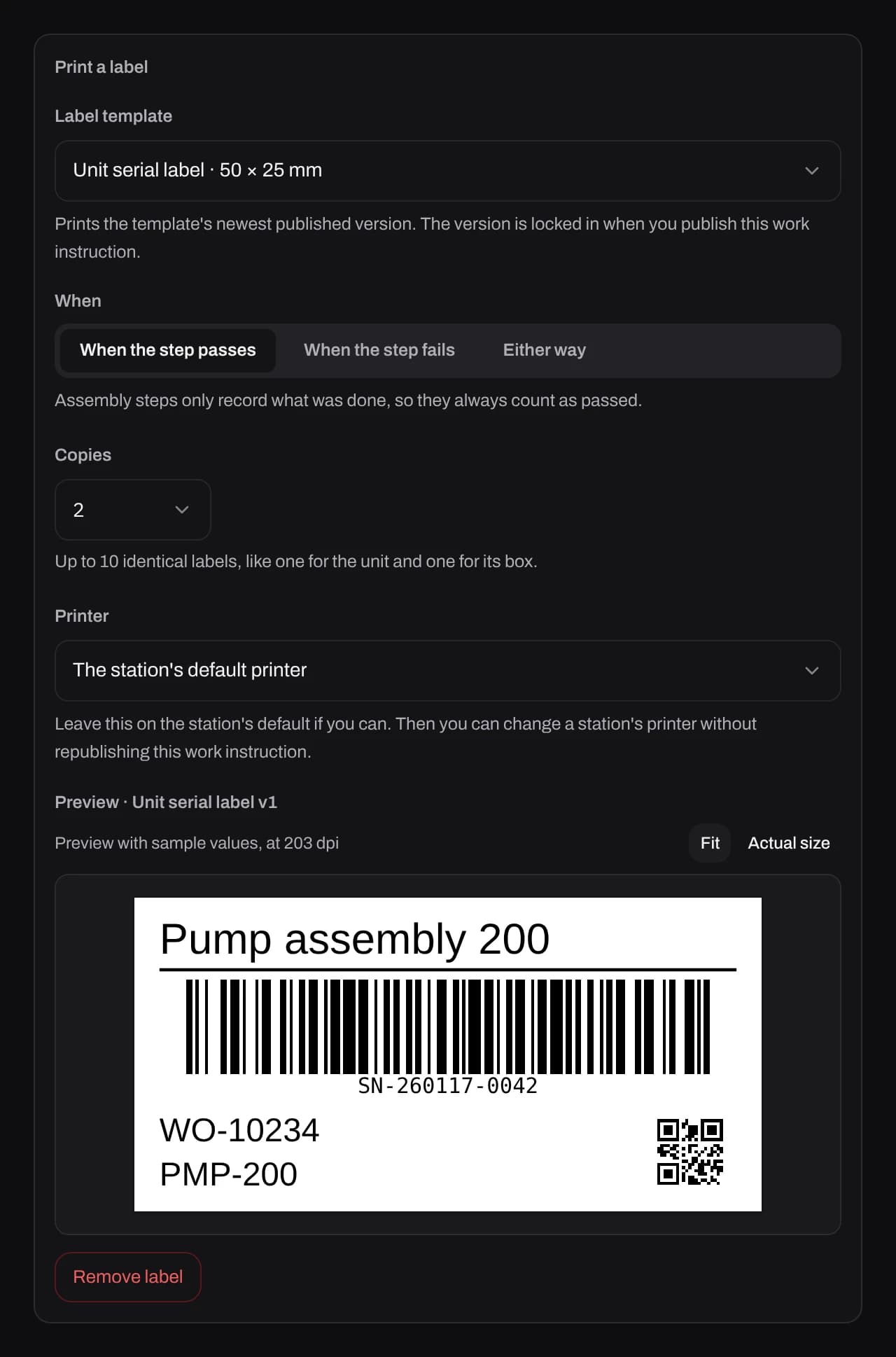
In the work instruction editor, a step's Print a label section picks the template, when to print (on a pass, on a fail or either way), 1 to 10 copies, and the printer.
Choose the station's default printer and the same work instruction prints at whichever bench runs it. A station without a printer of its own uses its line's.
When a label can't print
If a label can't print, the tablet says why, such as no printer set for the station or the printer reporting it is out of labels, and the unit carries on. If a tablet sends the same step twice, the label still prints once.
If the print PC is off, factoryprint holds each label for 10 minutes, then marks it failed. A PC that comes back after a weekend never prints labels for units that moved on long ago. You can change the wait in Settings.
Pair a print PC with a one-time code
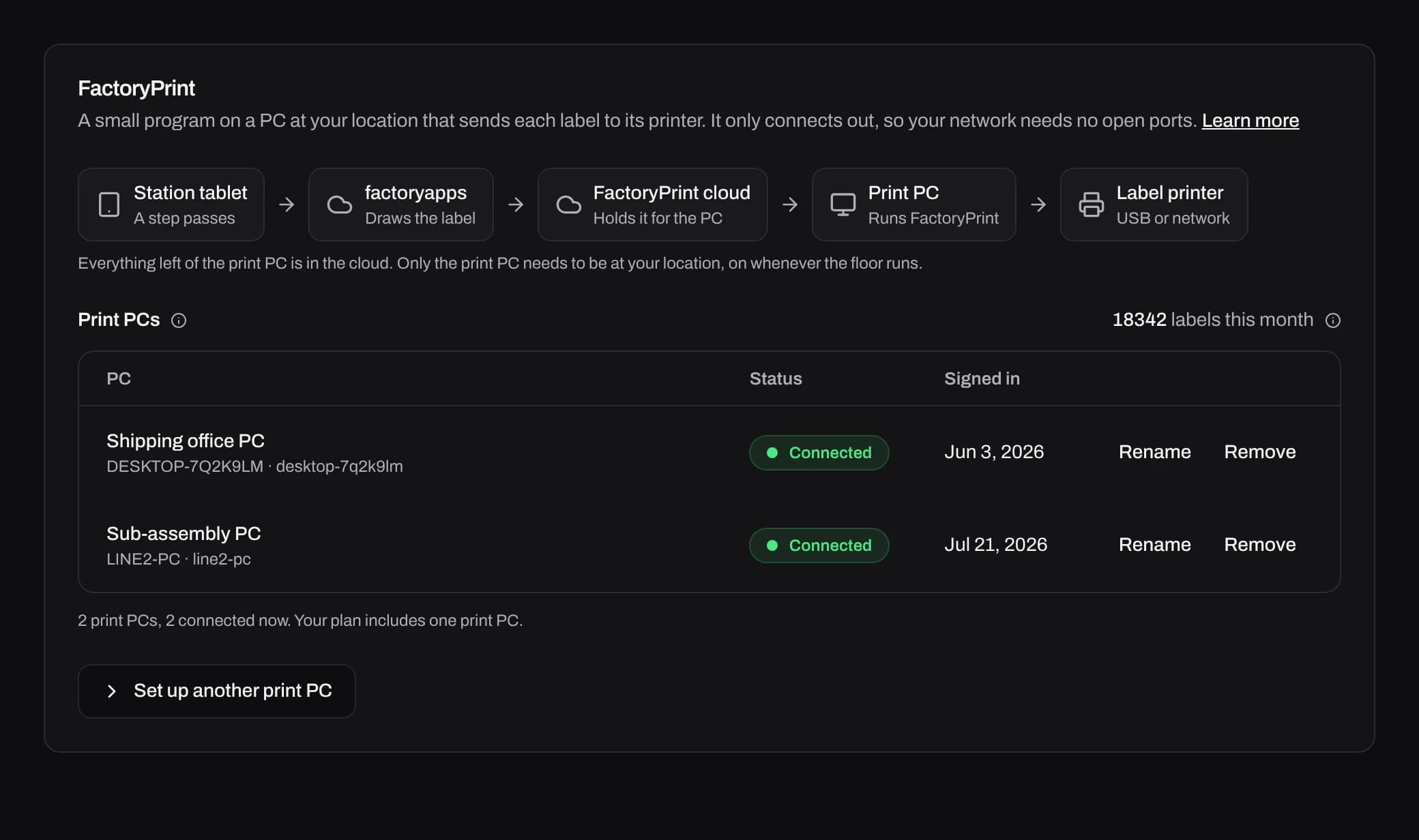
Download factoryprint for Windows or Mac from Settings › Printers and install it on a PC that stays on while the floor runs. On a shared PC, install it as a Windows service so it prints when nobody is signed in.
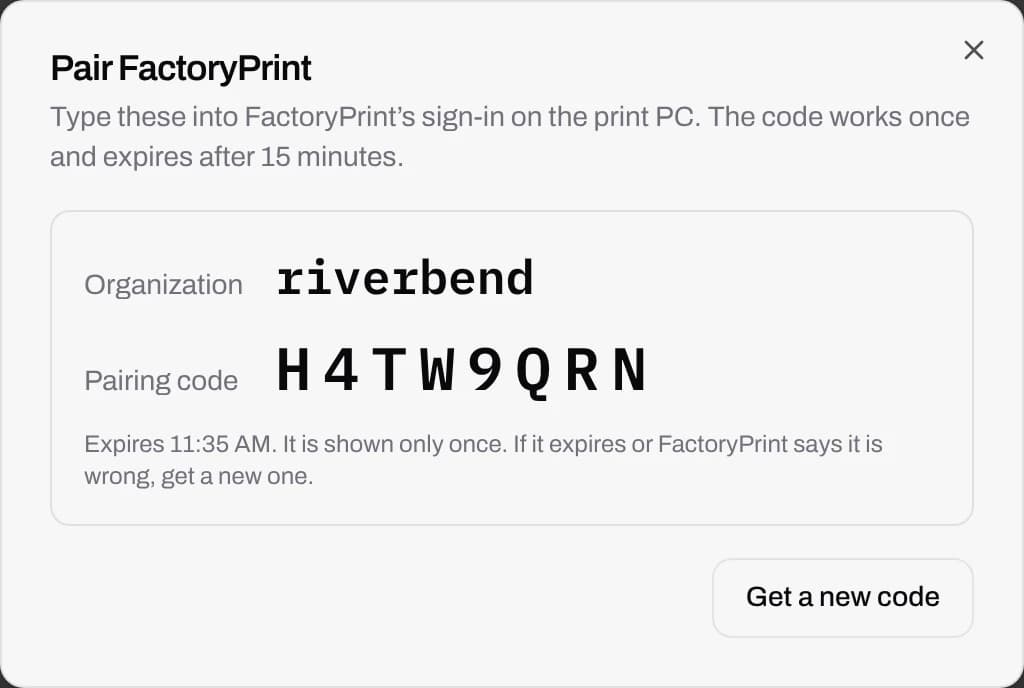
Sign it in with your organization and a pairing code. It uses nobody's password, and you can rename or remove the PC from Settings at any time.
Common questions
What is factoryprint?
The print client for factoryapps. It runs on one Windows or Mac PC at your location, receives labels from factoryapps and sends each one to the label printer it belongs to.
Which label printers work?
Most thermal label printers, including Zebra, Honeywell, SATO, TSC, Brother and DYMO, plus sheet printers. The printer's driver needs to be installed on the print PC so it prints a test page.
Do we need to open firewall ports?
No. The print PC only connects out to the internet over HTTPS.
Where do we design the labels?
In BarcodeLabels.io. Export the design as JSON and import it under Settings › Label templates, then map its fields and publish it.
Can we print operator badge stickers?
Yes. Badge stickers print from a desk computer through the browser, as a QR, Micro QR, Code 128 or Data Matrix code, one per label or on a sheet.
Start with one line.
Get in touch and we'll set up your first line with you.